Using myAHAHlib.js
In Lesson 4, "Client-Side Coding Using JavaScript," we encountered the concept of JavaScript functions being located in an external file that is referred to within our page.
That's how we'll use our new file myAHAHlib.js, using a statement in this form:
<SCRIPT language="JavaScript" SRC="myAHAHlib.js"></SCRIPT>
We will then be at liberty to call the functions within the script whenever we want.
The following is the skeleton source code of such an HTML page:
[View full width]
<html>
<head>
<title>Another Ajax Application</title>
<SCRIPT language="JavaScript" SRC="myAHAHlib.js"></SCRIPT>
</head>
<body>
<form>
<input type="button" onClick="callAHAH('serverscript.php?parameter=x', 'displaydiv',
 'Please wait - page updating ...')" >
This is the place where the server response
will be posted:<br>
<div id="displaydiv"></div>
</form>
</body>
</html>
In this simple HTML page, a button element is used to create the event that causes the callAHAH() method to be called. This method places the text string
'Please wait - page updating ...'
in the <div> element having id displaydiv and sends the asynchronous server call to the URL serverscript.php?parameter=x.
When responseAHAH() detects that the server has completed its response, the <div> element's content is updated using the value stored in responseText; instead of showing the "please wait" message, the <div> now displays whatever text the server has returned.
Applying myAHAHlib.js in a Project
We can demonstrate these techniques with a further simple Ajax application. This time, we'll build a script to grab the 'keywords' metatag information from a user-entered URL.
Note
 | Metatags are optional HTML container elements in the <head> section of an HTML page. They contain data about the web page that is useful to search engines and indexes in deciding how the page's content should be classified. The 'keywords' metatag, where present, typically contains a comma-separated list of words with meanings relevant to the site content. An example of a 'keywords' metatag might look like this: [View full width] <meta name="keywords" content="programming, design, development, Ajax, JavaScript,
XMLHTTPRequest, script">
|
Listing 13.2 shows the HTML code.
Listing 13.2. getkeywords.html
[View full width] <html>
<head>
<title>A 'Keywords' Metatag Grabber</title>
<SCRIPT language="JavaScript" SRC="myAHAHlib.js">
</SCRIPT>
</head>
<body>
<script type="text/javascript" src="ahahLib.js">
</script>
<form>
<table>
<tr>
<td>
URL: http://
</td>
<td>
<input type="text" id="myurl" name="myurl" size=30>
<input type="button" onclick ="callAHAH('keywords.php?url='+document.getElementById
('myurl').value,'displaydiv', 'Please wait; loading content ...')" value="Fetch">
</td>
</tr>
<tr><td colspan=2 height=50 id="displaydiv"></td></tr>
</table>
</form>
</body>
</html>
|
Finally, consider the server-side script:
<?php
$tags = @get_meta_tags('http://'.$url);
$result = $tags['keywords'];
if(strlen($result) > 0)
{
echo $result;
} else {
echo "No keywords metatag is available";
}
?>
We present the selected URL to the PHP method get_meta_tags() as an argument:
$tags = @get_meta_tags('http://'.$url);
This method is specifically designed to parse the metatag information from HTML pages in the form of an associative array. In this script, the array is given the name $tags, and we can recover the 'keywords' metatag by examining the array entry $tags['keywords']; we can then check for the presence or absence of a 'keywords' metatag by measuring the length of the returned string using PHP's strlen() method.
Tip
 | The @ character placed before a PHP method tells the PHP interpreter not to output an error message if the method should encounter a problem during execution. We require it in this instance because not all web pages contain a 'keywords' metatag; in the cases where none exists, we would prefer the method to return an empty string so that we can add our own error handling. |
When the file getkeywords.html is first loaded into the browser, we are presented with the display shown in Figure 13.1.
Figure 13.1. The browser display after first loading the application.
[View full size image]
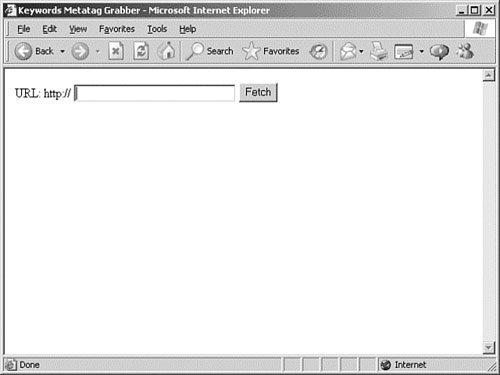
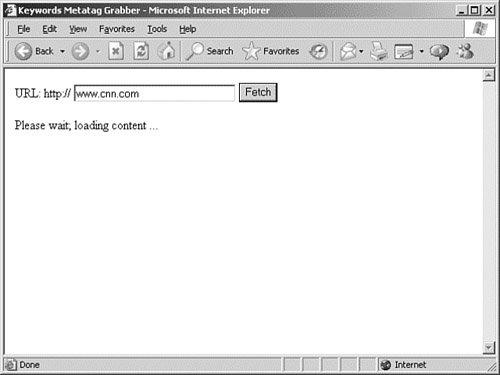
Here we are invited to enter a URL. When we then click on the Fetch button, callAHAH() is executed and sends our chosen URL as a parameter to the server-side script. At the same time, the message "Please wait; loading content ..." is placed in the <div> container. Although possibly only visible for a fraction of a second, we now have a display such as that shown in Figure 13.2.
Figure 13.2. Awaiting the server response.
[View full size image]
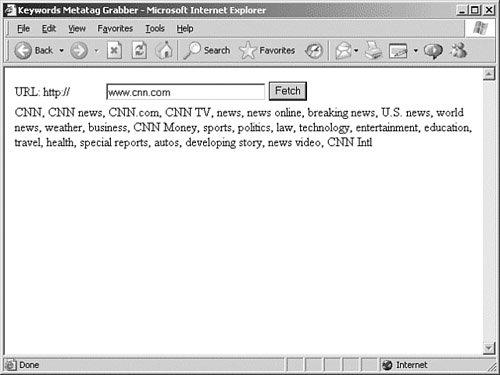
Finally, when the server call has concluded, the contents of the responseText property are loaded into the <div> container, producing the display of Figure 13.3.
Figure 13.3. The keywords are successfully returned.
[View full size image]
Extending myAHAHlib.js
As it stands, myAHAHlib.js is a simple implementation of AHAH. There are many ways it could be improved and extended, depending on how it is to be used. Rather than cover these in this lesson, we'll leave these for your own experimentation. Here's a few suggestions to get you started:
Currently only GET requests are supported. How might the functions be modified to allow POST requests too?
Much of the user feedback discussed in Lesson 11, "Our First Ajax Application," is not yet implemented in responseAHAH().
Is it possible for callAHAH() to be modified to accept an array of page elements for updating and (with the aid of a suitable server-side script) process them all at once?
Tip
| One option we haven't yet considered is the idea of passing back JavaScript code within responseText. Because JavaScript source code (like everything else in an HTML page) is made up of statements written in plain text, you can return JavaScript source from the server in the responseText property. You can then execute this JavaScript code using JavaScript's eval() method: eval(object.responseText);
Consider the situation where your server script returns the string: "alert('Hello World!);"
In this case the eval() method would execute the content as a JavaScript statement, creating a dialog saying 'Hello World!' with an OK button. |
![[View full size image]](13fig01_alt.jpg)
![[View full size image]](13fig02_alt.jpg)
![[View full size image]](13fig03_alt.jpg)