Using the Library
To demonstrate the use of the library, we're going to start with another simple HTML page, the code for which is shown here:
<html>
<head>
</head>
<body>
<form name="form1">
<input type="button" value="test">
</form>
</body>
</html>
This simple page displays only a button labeled "Test". All the functionality on the form will be created in JavaScript, using our new Ajax library.
The steps required to "Ajaxify" the application are
1. | Include the Ajax library myAJAXlib.js in the <head> area of the page. |
2. | Write a callback function to deal with the returned information. |
3. | Add an event handler to the page to invoke the server call. |
We'll start by demonstrating a GET request and using the information returned in the responseText property. This is similar to the situation we faced when dealing with AHAH in Lesson 13.
Including the Ajax library is straightforward:
<head>
<script Language="JavaScript" src="myAJAXlib.js"></script>
Next, we need to define our callback function to deal with the value stored in the responseText property. For these examples, we'll simply display the returned text in an alert:
<head>
<script Language="JavaScript" src="myAJAXlib.js"></script>
<script Language="JavaScript">
function cback(text) {
alert(text);
}
</script>
Finally, we need to add an event handler call to our button:
onClick="doAjax('libtest.php','param=hello','cback','get','0')"
Our server-side script libtest.php simply echoes back the parameter sent as the second argument:
<?php
echo "Parameter value was ".$param;
?>
Meanwhile the remaining parameters of the function call declare that the callback function is called cback, that we want to send an HTTP GET request, and that we expect the returned data to be in responseText.
Listing 17.3 shows the complete code of our revised HTML page.
Listing 17.3. HTML Page Rewritten to Call myAJAXlib.js
<html> |
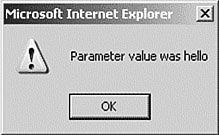
Figure 17.1 shows the result of running the program.
Figure 17.1. Returning text following an HTTP GET request.
To use the same library to retrieve XML data, we'll once again use the server-side script of Lesson 11, "Our First Ajax Application," which you may recall delivers the current server time in a small XML document:
<?php
header('Content-Type: text/xml');
echo "<?xml version=\"1.0\" ?><clock1><timenow>".date('H:i:s')."</timenow></clock1>";
?>
Our callback function must be modified because we now need to return the parsed XML. We'll use some DOM methods that should by now be familiar:
<script>
function cback(text) {
var servertime = text.getElementsByTagName("timenow")[0].childNodes[0].nodeValue;
alert('Server time is '+servertime);
}
</script>
The only other thing we need to change is the call to our doAjax() function:
onClick="doAjax('telltimeXML.php','','cback','post','1')"
Here we have decided to make a POST request. Our server-side script telltimeXML.php does not require a query string, so in this case the second argument is left blank. The final parameter has been set to '1' indicating that we expect the server to respond with XML in the property responseXML.
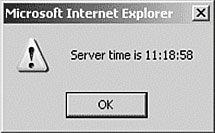
Figure 17.2 shows the result of running the program.
Figure 17.2. Returning the server time in XML via a POST request.